What's new in Trainerstudio

Workout plannerNovember 2, 2026

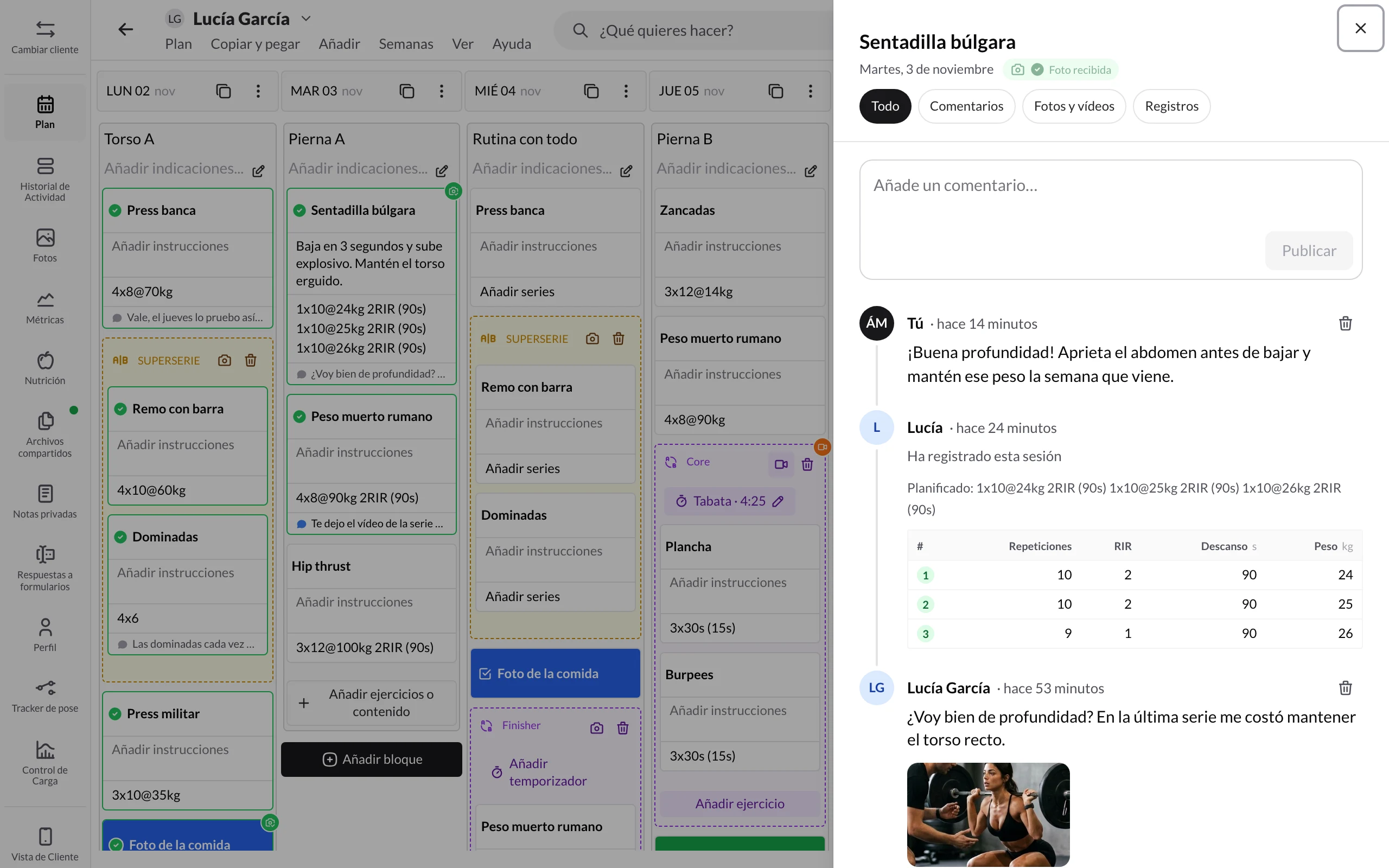
New editor bar: menus, action search and keyboard shortcuts

The client plan and the program editor have a new bar on desktop, with clear menus, an action search and keyboard shortcuts.

Planning on a computer now feels more like working on a document: everything you can do in a client's plan or a program lives in one bar at the top, organized by what you want to get done.

Menus by task. Plan (or Program), Copy and paste, Add, Weeks, View and Help. If an option is grayed out, hover over it and it tells you why.

What do you want to do? Press Ctrl/⌘ + K and type what you are looking for: "pdf", "history", "week 3"… It finds any action by name, even if you don't know which menu it's in, and some come with a link to their guide.

Keyboard shortcuts. Copy the day (Ctrl/⌘ + C) or the week (Ctrl/⌘ + Shift + C), paste (Ctrl/⌘ + V), undo (Ctrl/⌘ + Z), add a block (B), jump to a date (G) or download the PDF (Ctrl/⌘ + P). The full list is in Help → Keyboard shortcuts (Ctrl/⌘ + /).

What changes day to day:

  • The day you click is the one that counts. Paste and the Add menu act on the last day you clicked, outlined in blue.
  • Copy several weeks in a row. Copy this week adds each week to what you already copied, and then you paste it all at once.
  • Empty this week, in the Weeks menu, deletes everything in the visible week after asking you to confirm. Changed your mind? Undo it.
  • In programs, the bar shows Week N of M and you can Make a copy of the program or Assign to a client… without leaving the editor.
  • In a client's plan, Add → A whole program… loads a program starting on the selected day.

On mobile, plans and programs keep their usual ⋮ menu.

Details in Editor bar and keyboard shortcuts and How to create and assign programs?.

Exercise libraryOctober 25, 2026

One search for your exercises and every library

The exercise library has been redesigned: your exercises and every library show up together, search understands what you type and TrainerStudio warns you before you duplicate an exercise.

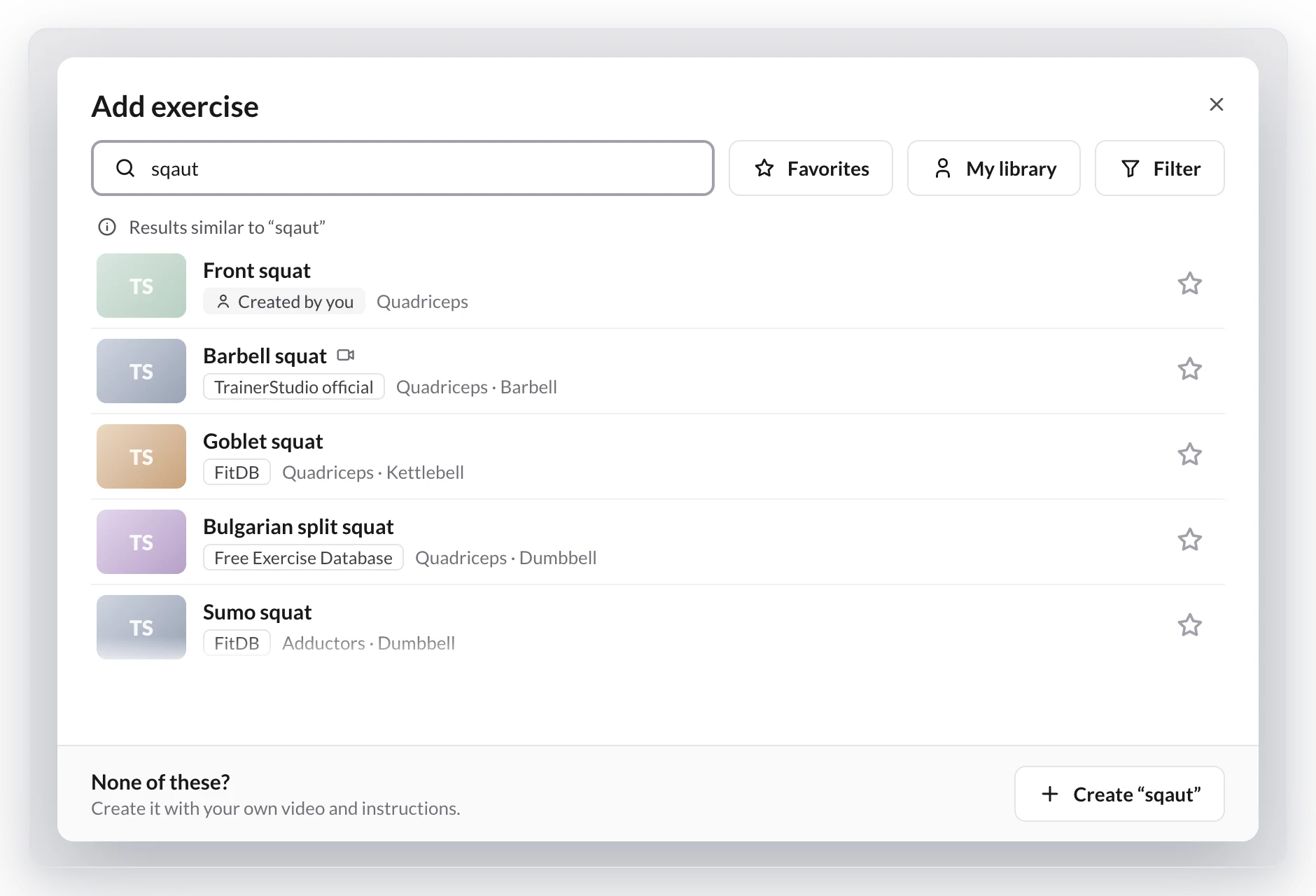
Add exercise search with the misspelled search sqaut, the hint Results similar to “sqaut” and squat results from Created by you, TrainerStudio official, FitDB and Free Exercise Database
Typos are fine: you get the closest matches from your exercises and every library.
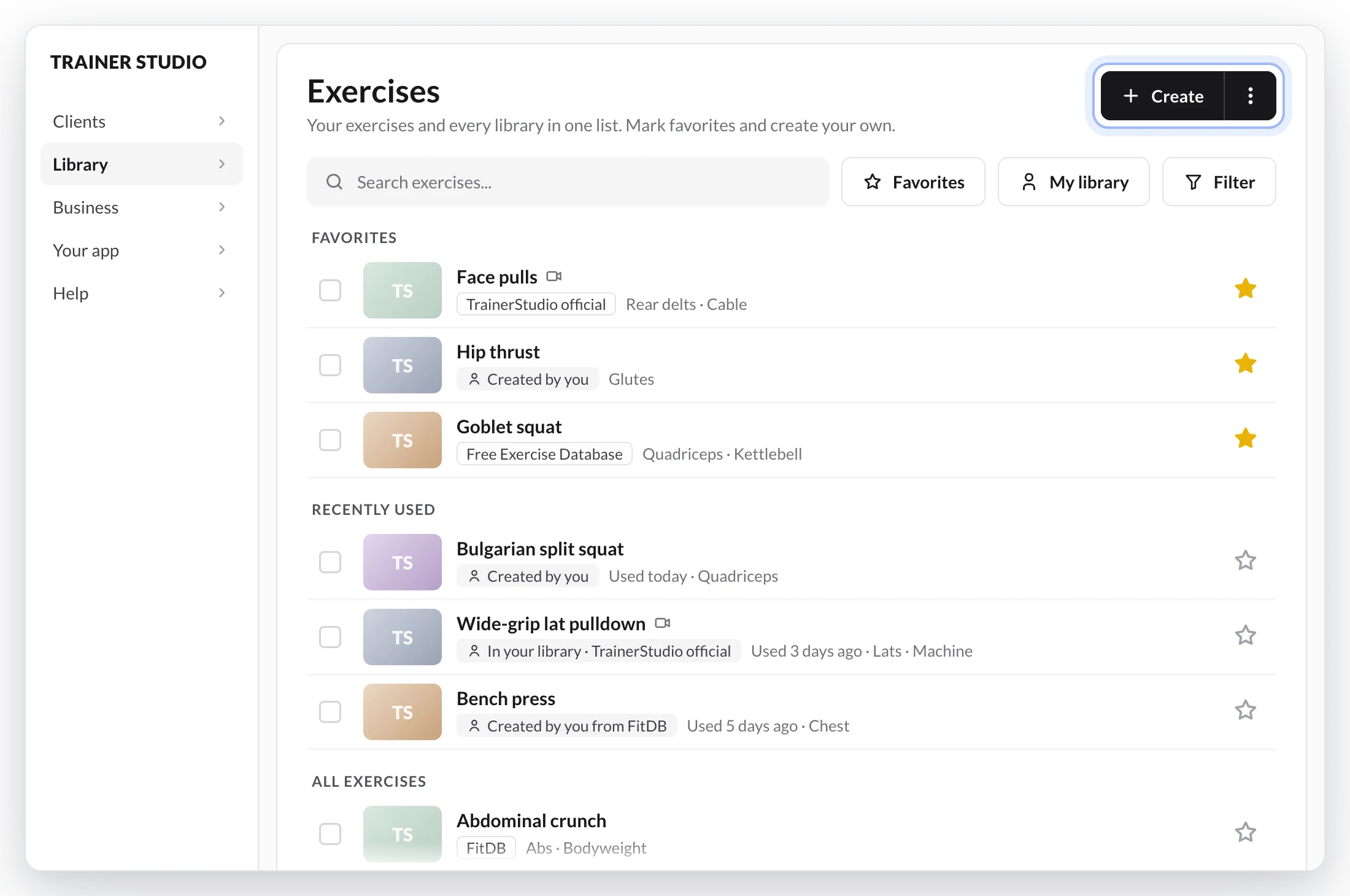
Exercises page with the search box, the Favorites, My library and Filter buttons and the Favorites and Recently used sections, each exercise with its origin label and its star
Your favorites and recently used exercises are right there before you type anything.

Finding an exercise no longer depends on remembering its exact name or which library it came from.

Your exercises and every library's now show up in one list, in Library → Exercises and when you click Add exercise in a plan, program or template. No more copying or importing.

What changes:

  • Search the way you talk. Skip accents, change the word order, type just the start of each word, make a typo or use another name for the exercise. You can also search by muscle.
  • Yours first. Your favorites at the top, then your exercises, then the libraries'. Before you type, your favorites and what you've used in the last 30 days are already there.
  • Favorites and My library. Star any exercise and click My library to see only your exercises and favorites. TrainerStudio remembers your choice on all your devices.
  • No more duplicates. If you already have an exercise with that name, TrainerStudio asks before adding another one. Already have duplicates? Merge them: plans, programs, history and records move to the one you keep.
  • Make it yours. Edit any library exercise; the original stays as it is.

Since launch, singular and plural return the same results, a typo no longer hides your own exercise, search knows more synonyms and, when you filter to My library, a notice at the top of the list tells you if the exact exercise is in another library. When a library improves the photos, videos or classification of an exercise you use, yours is updated too, and whatever you changed yourself stays. And if you can't find it, click anywhere on the None of these? card to create it.

Available on the web now; it comes to the iOS and Android apps with their next update.

Step-by-step guide in How to search exercises and use TrainerStudio's libraries?.

DocumentsSeptember 1, 2026

Request and manage document signatures

Consent forms, authorizations and other PDFs can now be signed in TrainerStudio through a simple, traceable flow.

Dialog for requesting a client's signature on a PDF
Check the client and the exact PDF version before sending the request.
Signed document with actions to download it and view details
Check the status and download the signed PDF from the client profile.

You can now request a signature on a shared PDF from the client profile. TrainerStudio keeps the exact version you send and displays the request in the Academy section of the client's app.

The client opens the document, confirms that they have read it, draws their signature and receives a downloadable copy. They can also decline the request if they do not want to sign.

From Shared files you can track its status, send a reminder, cancel a pending request and download the final PDF. The signed copy includes acceptance details and technical evidence for traceability. This is a simple electronic signature, not a qualified digital-certificate signature.

FormsSeptember 1, 2026

More powerful forms for assessments and follow-ups

Forms now collect richer answers and turn every recurring check-in into progress that is easy to review.

Form editor with scale, choice and free-text questions
Combine different question types and check the result in the live preview.
List of a client's form responses
Review every submission from the client profile and open the full set of answers.
Progress view for scale answers in a form
Compare recurring check-ins to spot trends at a glance.

The new editor lets you combine free text, single choice, multiple choice and configurable scales. Reorder questions and options, preview the client experience and reuse every form from your library.

Then add it to the relevant day in the client's plan. They answer it in their app and can update the submission if they need to correct something.

Their profile brings together every response, filters by form and date, and a progress view for scale questions. Weekly check-ins, initial assessments and other questionnaires no longer require you to compile the data by hand.

NotificationsJuly 10, 2026

«Finish workout» button: your client closes their session and you're notified instantly

Your client closes their day's workout with one tap and you get an instant alert, with the X/Y of exercises they completed. It's opt-in: you turn it on from the client-app settings.

Knowing whether a client trained today shouldn't mean opening their plan and counting exercises one by one. Until now the only signal was scanning, item by item, what they'd marked as done: no clear "I'm finished" action from the client, and no alert for you when it happened.

Now the client app can carry a «Finish workout» button. Your client closes their day's session with a tap and you're notified instantly —by push or WhatsApp— with how many exercises they completed.

What changes:

  • It's opt-in, and you turn it on. The button is off by default; you enable it from Settings → Client app, next to the other app settings (visibility window, file uploads…). While it's off, nothing changes for anyone.
  • Your client finishes whenever they want. A fixed bottom bar with «Finish workout» always at hand. They don't need every exercise marked to close the day, and they can Undo if they slip.
  • They can mark everything at once. If exercises are still unmarked, the app offers «Mark everything as completed and finish» or «Finish without completing them» —what you see is the real count, nothing is auto-completed behind your back.
  • You get the alert in the moment. The «Workout finished» notification arrives with the client's name and the X/Y of exercises they logged. Push by default; you can add WhatsApp from Settings → Notifications.
  • No spam. If the client undoes and finishes the same day again, you don't get a second alert: only the first time counts.

It's the difference between checking who trained and having the app tell you the moment it happens.

Full walkthrough in How to use the «Finish workout» button.