
How to search exercises and use TrainerStudio's libraries?
TrainerStudio comes with ready-made exercises, each with its name, instructions and classification (muscles, equipment, movement type…). They come from several libraries: TrainerStudio official (with video), FitDB, Free Exercise Database and others. You don't have to copy or import them: they show up in the same list as your own exercises, both in Library → Exercises and when you click Add exercise in a plan, a program or a template.
In this guide you'll see how to find an exercise, how to use it or change it to suit you, and how to keep your library tidy.
1. All your exercises in one list
Go to Library → Exercises. Before you search for anything, the list is split into:
- Favorites: the ones you've starred.
- Recently used: the ones you've given your clients in the last 30 days, with "Used today" or "Used N days ago".
- Suggested: common exercises to get you started. They go away as soon as you star your first favorite.
- All exercises: everything else, yours and the libraries' together, in alphabetical order.
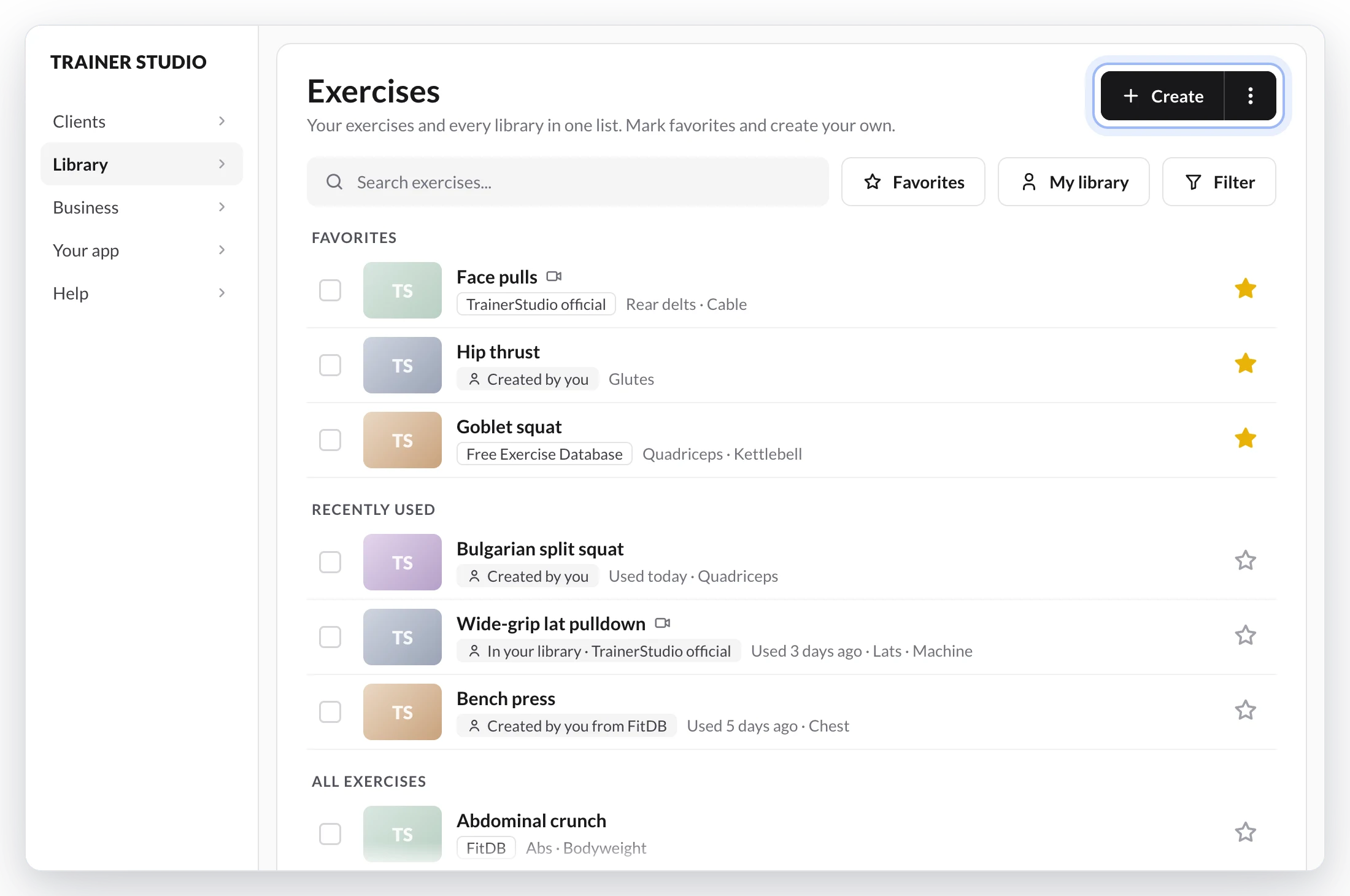
Under each exercise you'll see where it comes from:
- Created by you: you created it (or uploaded it from an Excel file).
- In your library · FitDB (or the name of another library): it came from that library and you've already used or edited it, so now it's yours.
- TrainerStudio official, FitDB or another library name: it belongs to that library and you haven't used it yet.
- Created by you from a library: you started from an exercise in that library and changed its name, videos or classification.
The camera icon means the exercise has a video. Library exercises appear in the language you use TrainerStudio in.
2. Search the way you talk
Type in Search exercises... and the results show up as you type. You don't need the exact name:
- Capital letters and accents don't matter: "romanian deadlift" finds "Romanian Deadlift".
- Word order doesn't matter: "press dumbbell" finds "Dumbbell press".
- The start of each word is enough: "bulg spl" finds "Bulgarian split squat".
- If you make a typo, it shows you the closest matches: with "sqaut" you'll see "Results similar to “sqaut”".
- It knows other names for the same exercise: if you search by another name, a note starting with "Also known as:" tells you which one it found.
- You can search by muscle: "glutes" shows you exercises for the glutes.
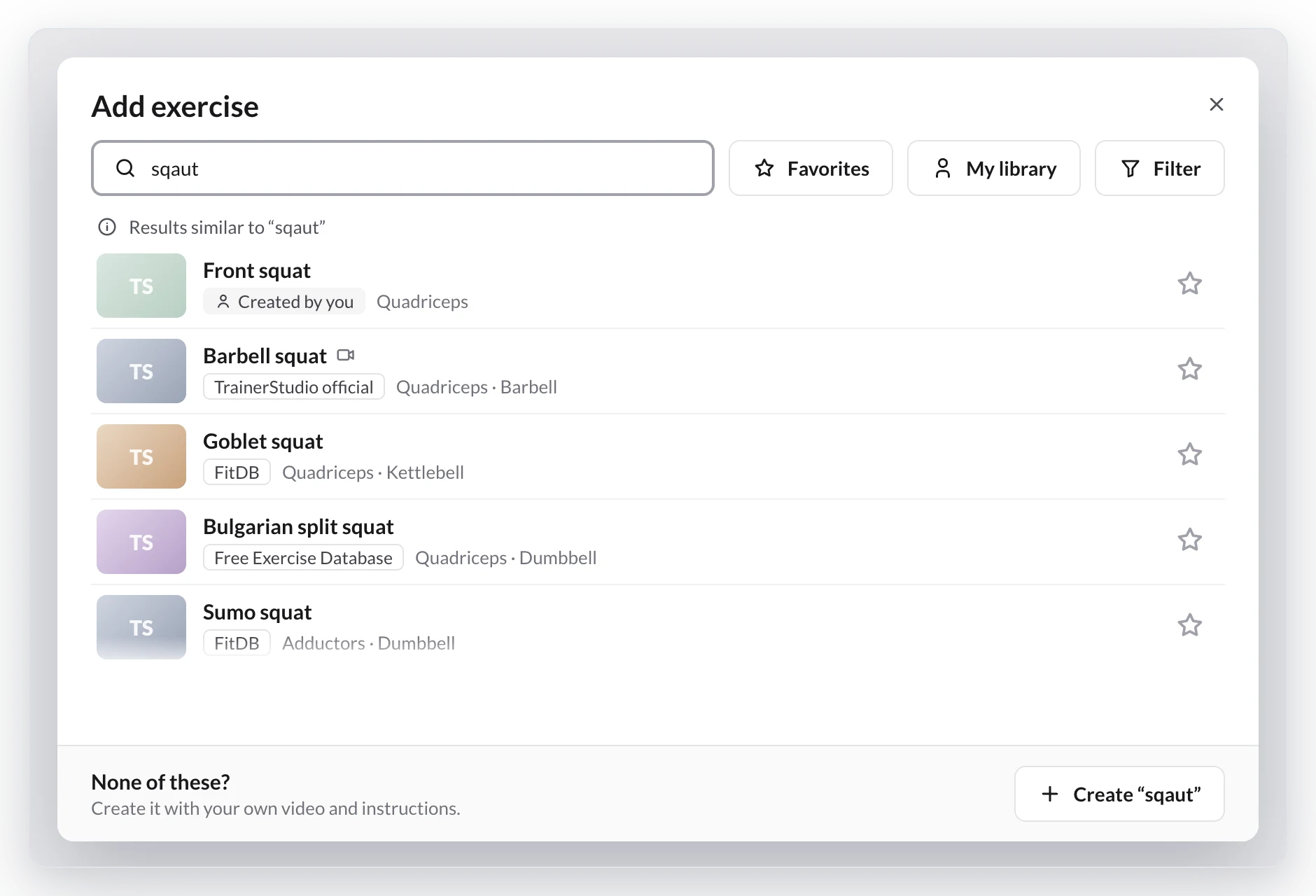
Your favorites come first, then your exercises and last the libraries' ones. If several libraries have the same exercise, you'll see one from each, with the ones that have video first. If a library has an exercise with the same name as one of yours, it's marked You already have it and shows further down: you'll usually want to use yours.
3. Mark your favorites
Click the star on any exercise, yours or from a library, to keep it handy:
- Your favorites always come first, whether you search or not.
- The Favorites button, next to the search box, shows only your favorites.
- If you work with other coaches on the same account, you all see the same favorites.
- A library favorite counts as part of My library: you'll see it even when you filter to only your exercises.
4. Choose which libraries to see
If you only want to see your own exercises, click My library, next to Favorites. That's where you'll find the ones you created, the library exercises you've already used or edited, and your favorites. Click it again to see everything. On a phone, on the exercises page, you'll find it in the ⋮ menu as Show my library.
TrainerStudio remembers your choice on all your devices: if you pick My library once, the search will always open that way until you change it. Each coach on the team has their own choice.
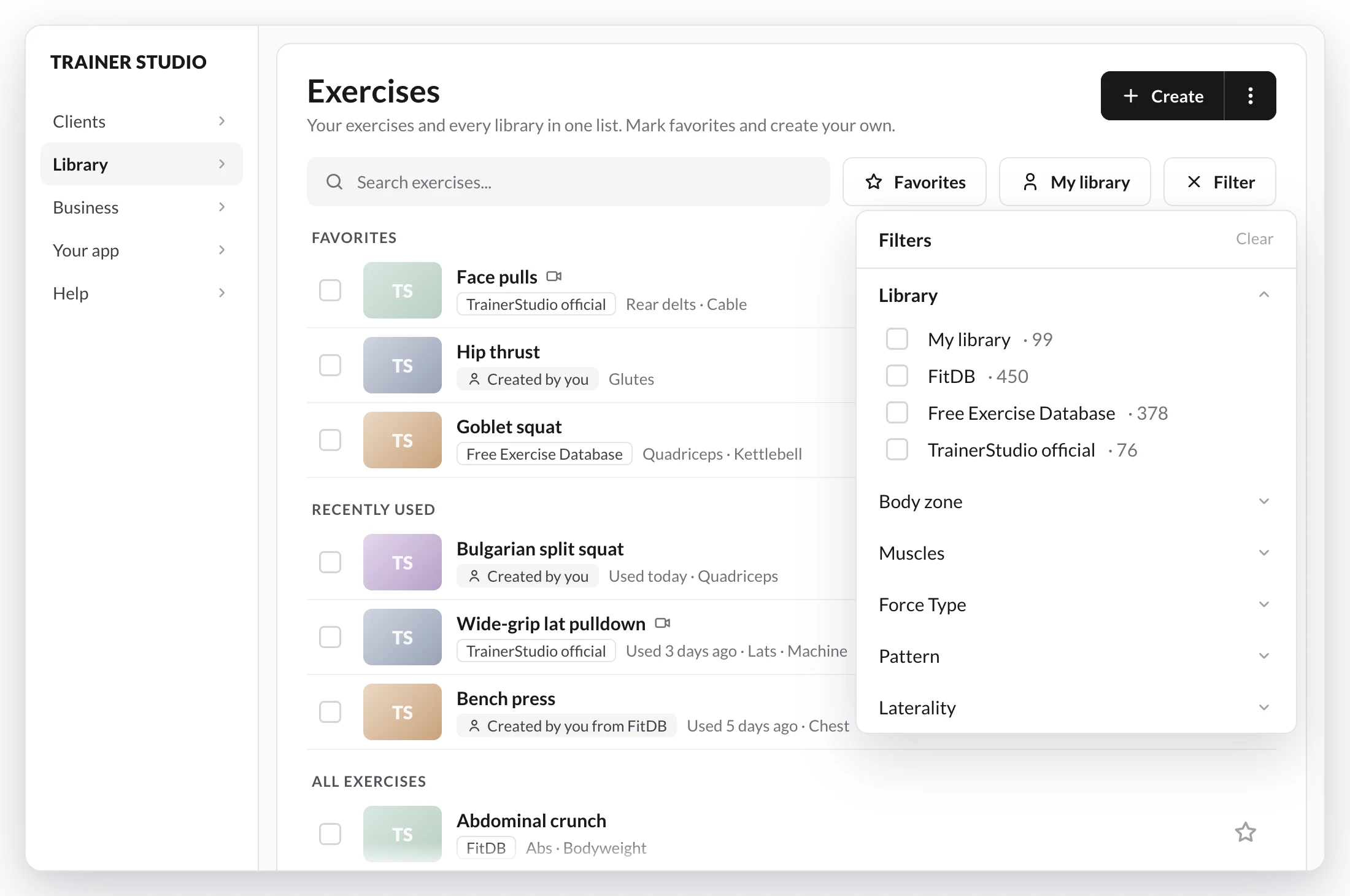
To narrow things down further, click Filter. Under Library you can pick My library or one or more specific libraries, each with its number of exercises. Below that you can filter by Body zone, Muscles, Force Type, Pattern, Laterality, Mechanic, Equipment and Tags. Clear removes all the filters.
Even with a filter on, TrainerStudio lets you know if the exercise you're looking for is in another library:
- "3 exact matches in other libraries" (or "under another name"), at the top of the list, when what you picked doesn't have the exercise exactly as you typed it, but another library does.
- "14 more in other libraries", at the end of the list.
- "0 in My library · 6 in other libraries", when nothing turns up in what you picked.
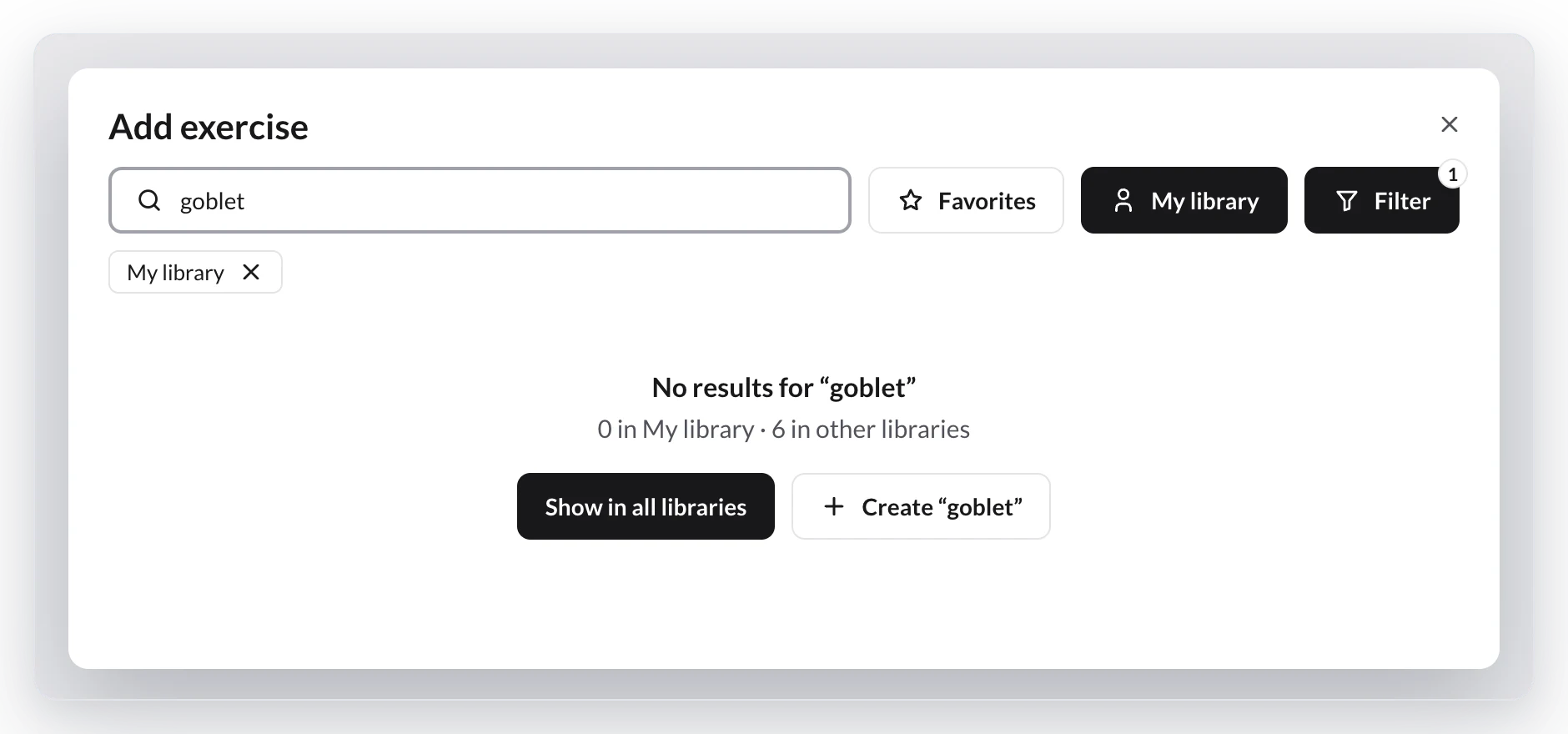
Click Show in all libraries to see them. When you click Add exercise in a plan, a program or a template, you don't have to: if what you picked has nothing and another library does, the search shows them right away, with "0 in My library · showing all libraries" at the top of the list. Click Only in My library to go back to your choice.
This only changes that one search: My library stays selected, and as soon as you type something else, the search looks in what you picked again.
You add Tags to your own exercises. If you filter by a tag, you won't see library exercises.
5. Use an exercise from a library
In Add exercise, click the exercise and it's added to the plan like any other. From then on it's yours: you'll see it labeled "In your library · FitDB" (or whichever library it came from) and it won't show up twice.
If you already have an exercise with the same name, TrainerStudio first asks which one you want:
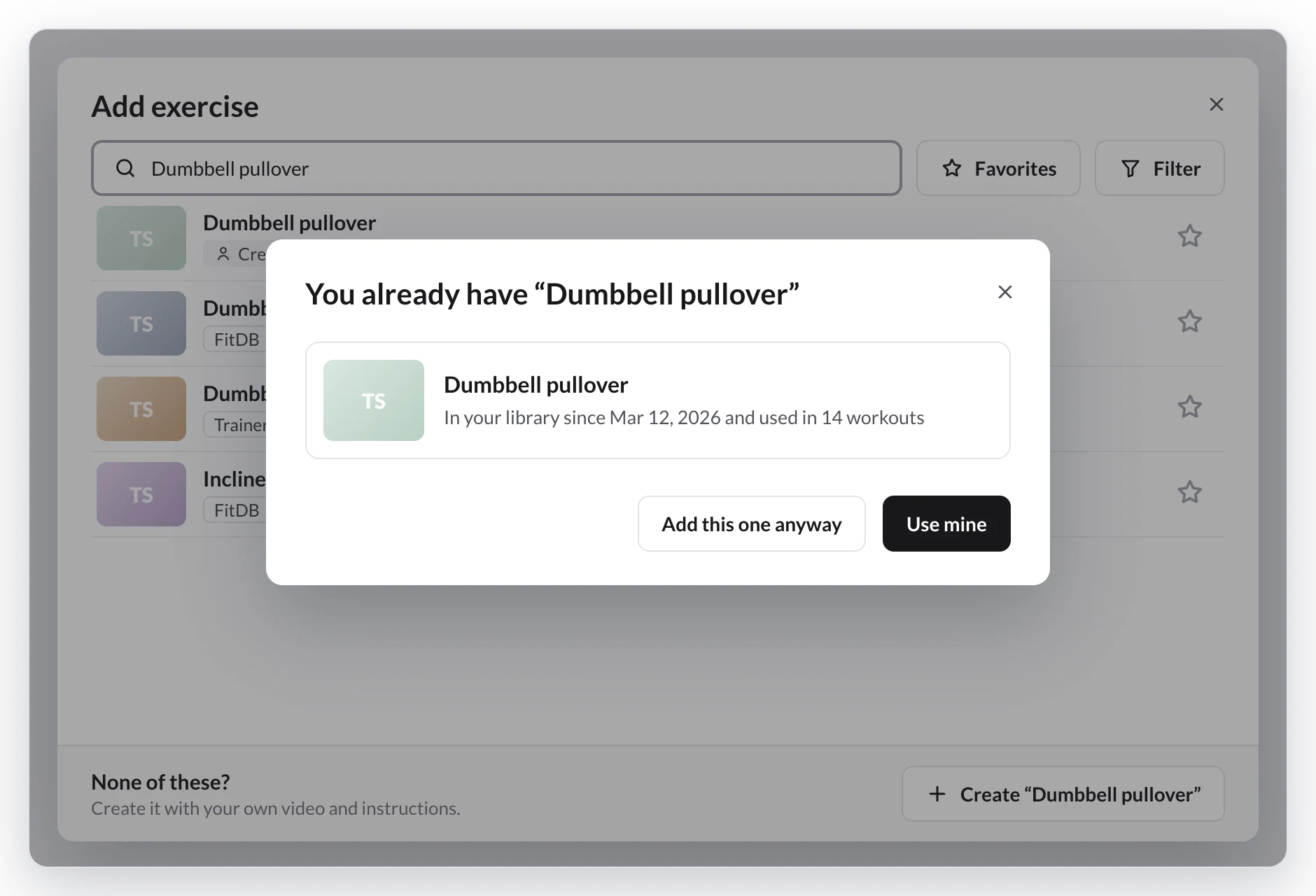
- Use mine: the one you already had is added.
- Add this one anyway: the library's exercise is added even though it has the same name.
That way you don't end up with three "Goblet squat" in your library.
6. Change an exercise to suit you
In Library → Exercises, click any exercise to open it, even if it comes from a library. Change whatever you want (name, instructions, videos, classification, workload control) and click Save Changes.
- If it came from a library, you'll see A copy has been created in your library. Your changes are saved to your exercise; the library's one doesn't change.
- If you change its name, videos or classification, you'll see Saved as your own version and the label will switch to "Created by you from…". From then on it's yours alone, and the original library exercise shows up in the list again as a separate one.
- Changing the instructions, tags, alternatives or workload control doesn't turn it into your own version.
If you already have another exercise with that name when you save, TrainerStudio asks you the same question as in the previous section.
7. Keep your library tidy
On a computer, every exercise in Library → Exercises has a checkbox. Tick several and a bar with these options appears:
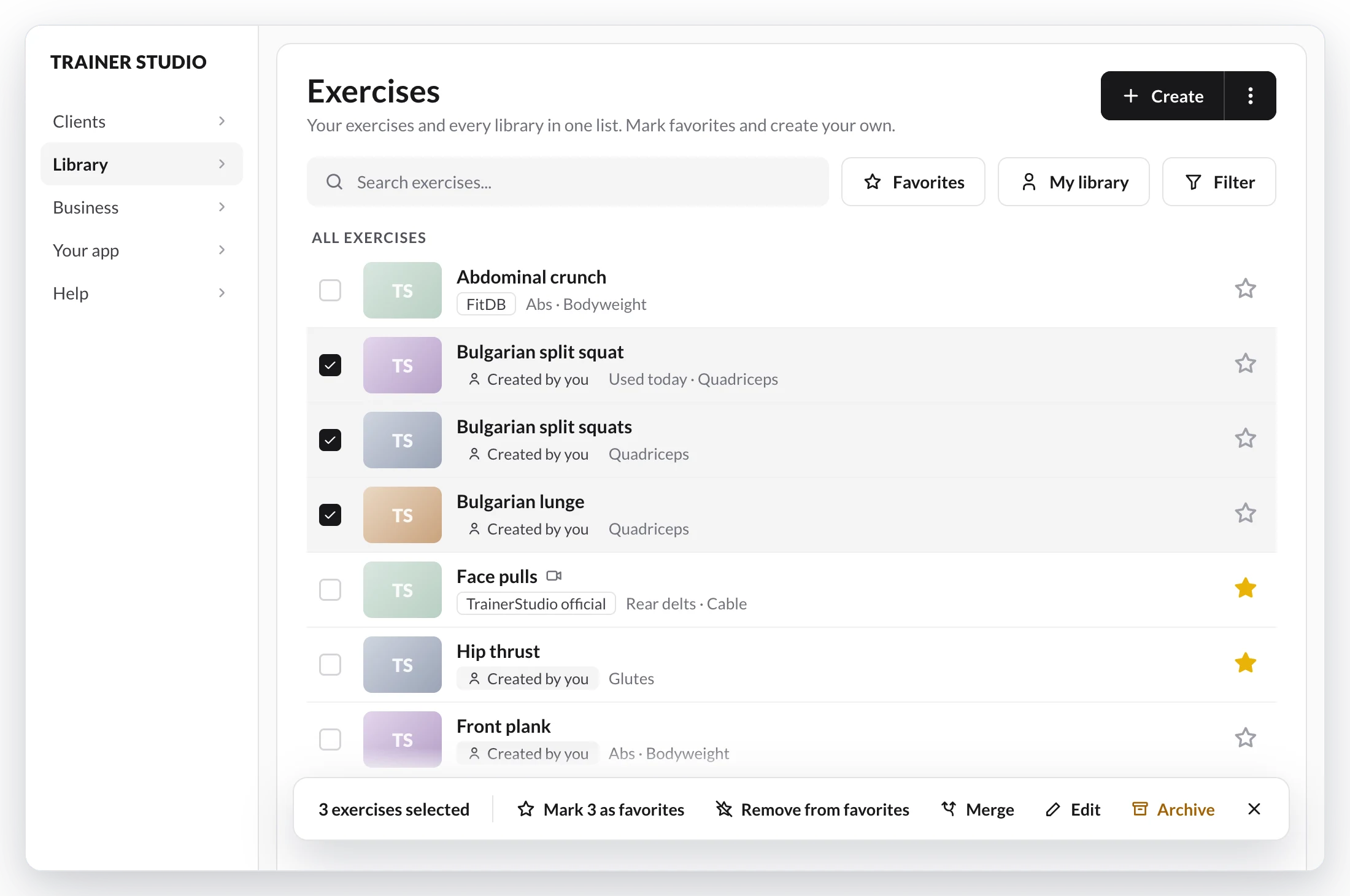
- Mark N as favorites and Remove from favorites.
- Merge: combines several duplicate exercises into one. You choose the Exercise to keep, and everything from the others (plans, programs, templates, alternatives, history and records) moves to it. The others are archived.
- Edit: changes the tags, classification or workload of all the ticked exercises at once. For each field you choose Add, Remove or Replace, or Clear to empty it.
- Archive: they stop showing up in your library.
Merge, Edit and Archive only appear if every ticked exercise is one of yours. To merge, you need to tick at least two.
Good to know
- When a library improves an exercise, you get the update too. When a library changes the photos, videos or classification of an exercise you've already used, yours is updated. The name you see in your plans doesn't change, and neither do your instructions, tags, alternatives or workload control. If you've already made it your own version, it's left alone.
- It's saved in your language. The name and instructions are saved in the language you have set in TrainerStudio the first time you use or edit the exercise.
- No more importing. The old "Copy library" and "Add to my library" options are gone: use any exercise directly and mark as favorites the ones you want at hand.
- Can't find an exercise? Click Create “…” in the search and create it yourself: How to create exercises?
Related guides
How to create exercises?
Create exercises in TrainerStudio with your instructions, tags, videos, cover, classification and workload control, from the library or without leaving the plan.
How to let your clients swap an exercise?
Give your clients the option to swap an exercise for an alternative you approve. You define the list, they choose during the workout and your programming stays intact.