
Log exercise weight and track progress
Yes. A client can log what they actually performed in every set —for example, Bulgarian split squat: 25 kg × 10— and you can review every session from their plan. No need for screenshots or messages after training.
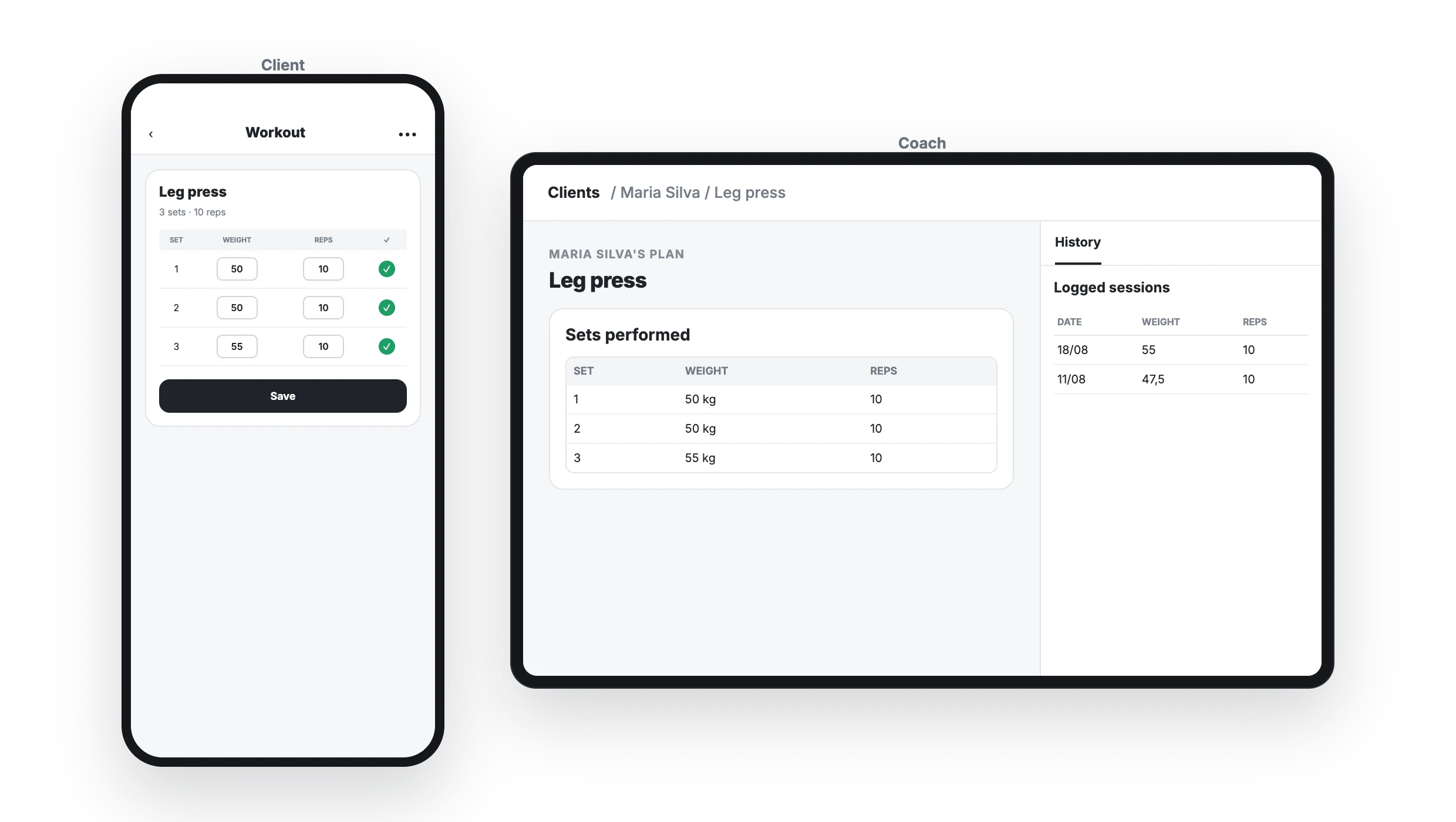
1. Add the columns you want to track
In the exercise set editor, add the variables the client should complete: usually Weight and Reps, but also RPE, RIR, time, or distance. The planned value is a reference; the client can replace it with the actual result.
2. The client logs each set on their phone
They open the exercise and, in the Log tab, enter the load and repetitions right in the sets table. When they finish each set, they tap its number in the square box on the left: it turns green with a ✓. For example: 24 kg, 25 kg and 26 kg on the three Bulgarian split squat sets.
Below each set they see in gray what they did last time, so they know what to match or beat. With View all sessions they can check everything they've logged on that exercise.
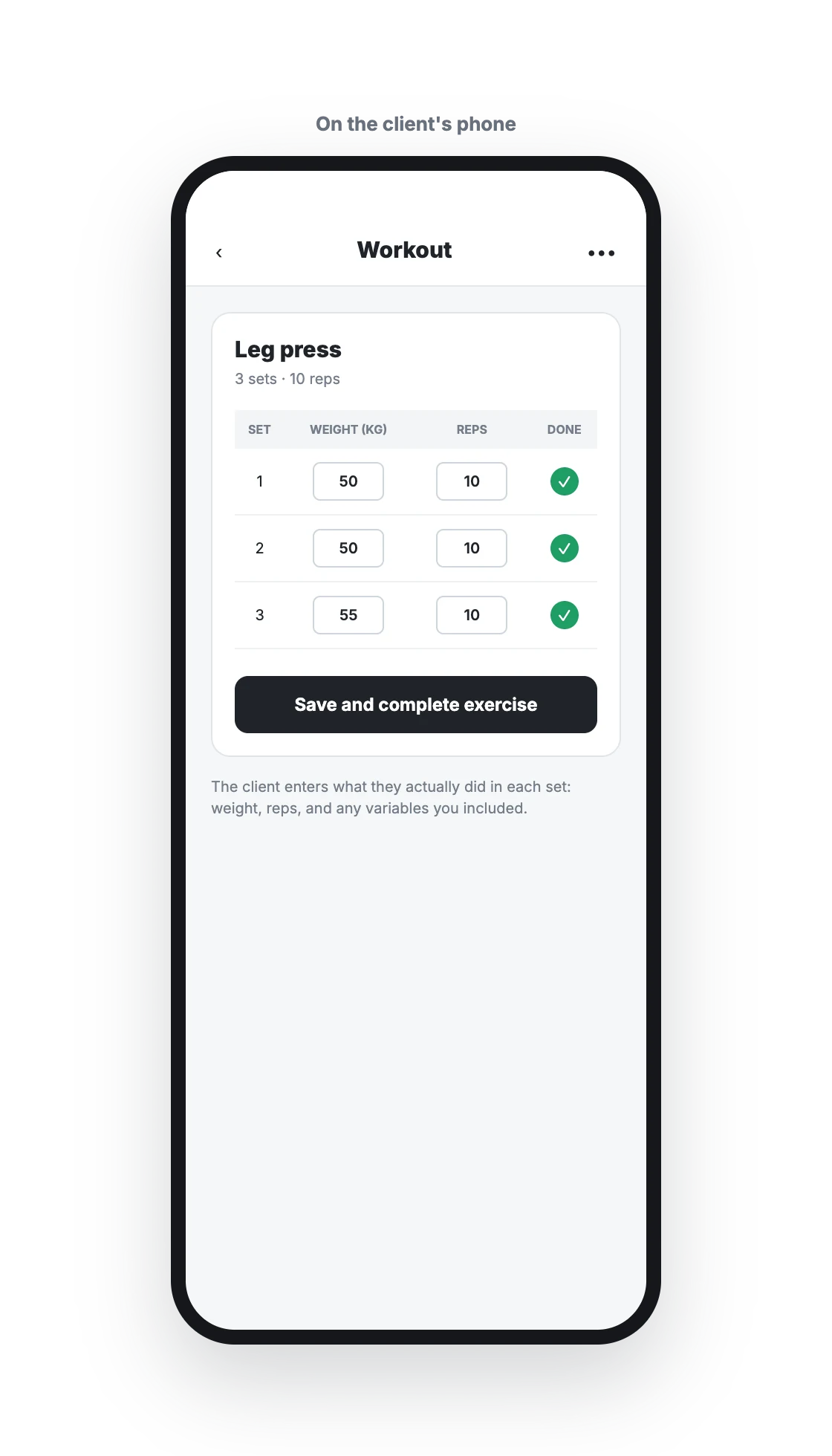
Everything saves automatically as they type, with no button to press, whether they log it set by set or after the workout. In supersets and circuits, each exercise is still logged from Record marks.
3. Review history from the client's plan
Open the client's plan, hover over the exercise card and click Activity (you can also click History at the bottom of the exercise's edit panel). In the panel, choose the Logs filter: you'll see the progress chart, what was logged in This session and the Previous sessions, each with its Logged sets table and what was Planned above it. Full details in How to comment on and review the activity of each exercise?.
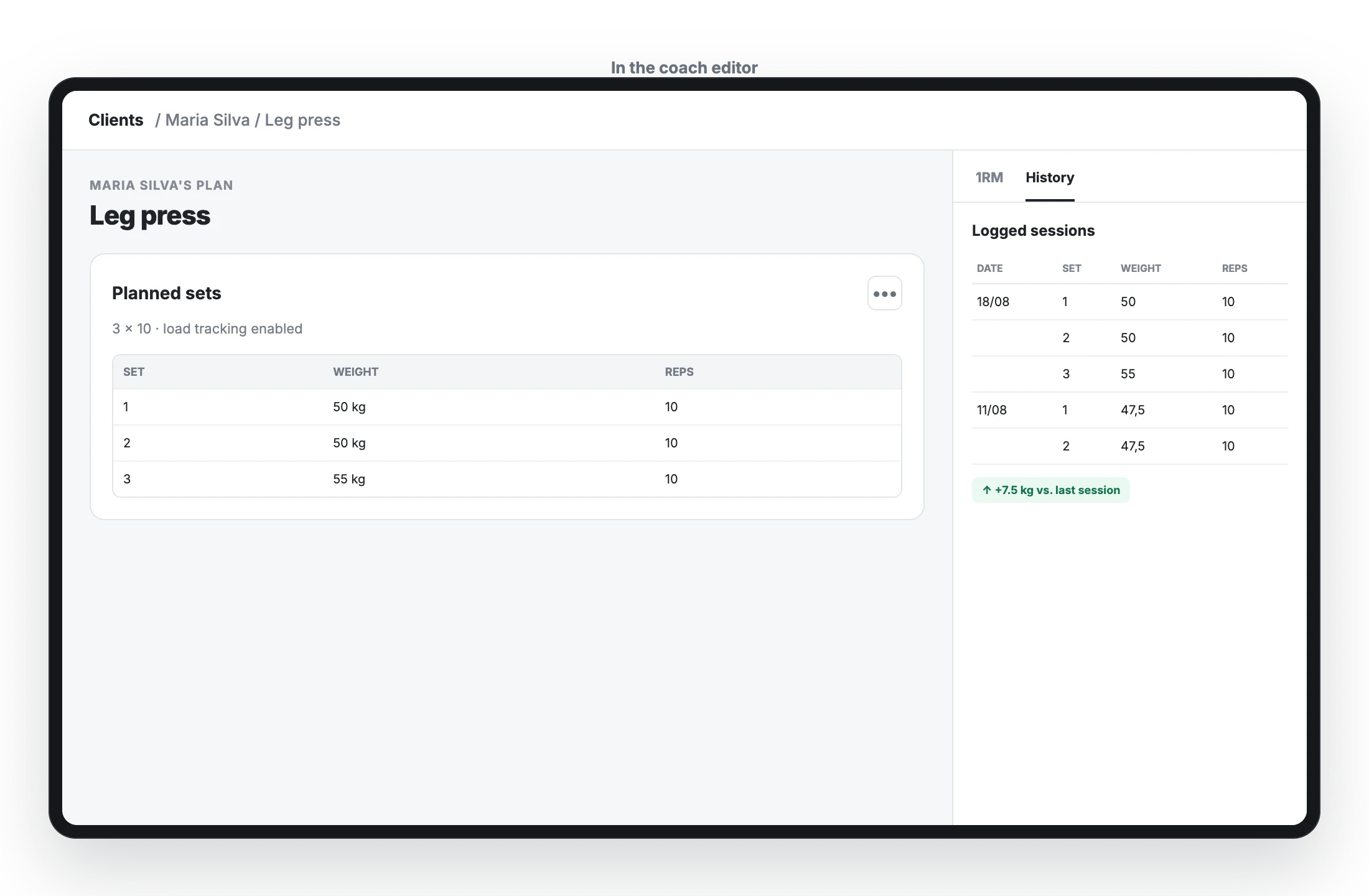
The 1RM tab in the set editor helps you maintain the client's maximum for loaded exercises.
Calculate weight from 1RM
How to prescribe loads as a percentage of the client's 1RM and let TrainerStudio work out the kilos for you — from desktop or mobile, inside the set editor.
How to recover plans changed by mistake?
Open the planner's Change history, preview a saved version and restore it to get a client's plan back exactly as it was before.