
How to comment on and review the activity of each exercise?
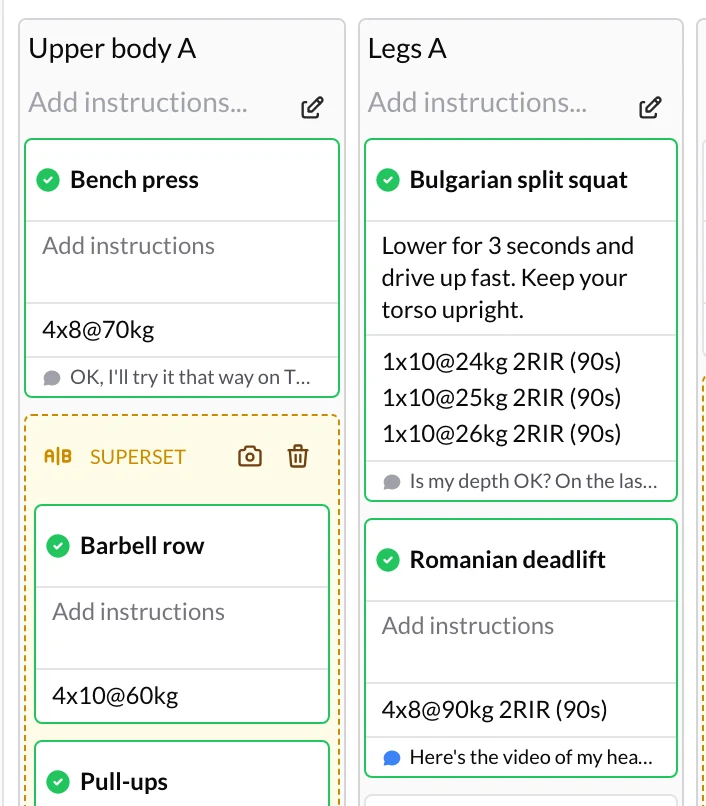
Everything that happens on a plan item stays with it: what your client tells you ("the last set was tough"), the video of their technique, the sets they've logged and what you reply. You see it all in the item's Activity panel, without digging through the chat or going session by session.
1. Open an item's activity
In the client's plan there are several ways to get there:
- Activity, in the bar that appears when you hover over the item's card.
- The card footer, which shows the latest thing your client did on that item. If it's something you haven't replied to yet, it's highlighted. Click it to open the activity.
- History, at the bottom of an exercise's edit panel.
- The badge Photo requested or Photo received (or the video one), which opens the activity on Photos & videos. More in How to ask your clients for photos and videos?.
- View, on the line that appears in the chat or on an entry in the notification bell.
2. Review what happened
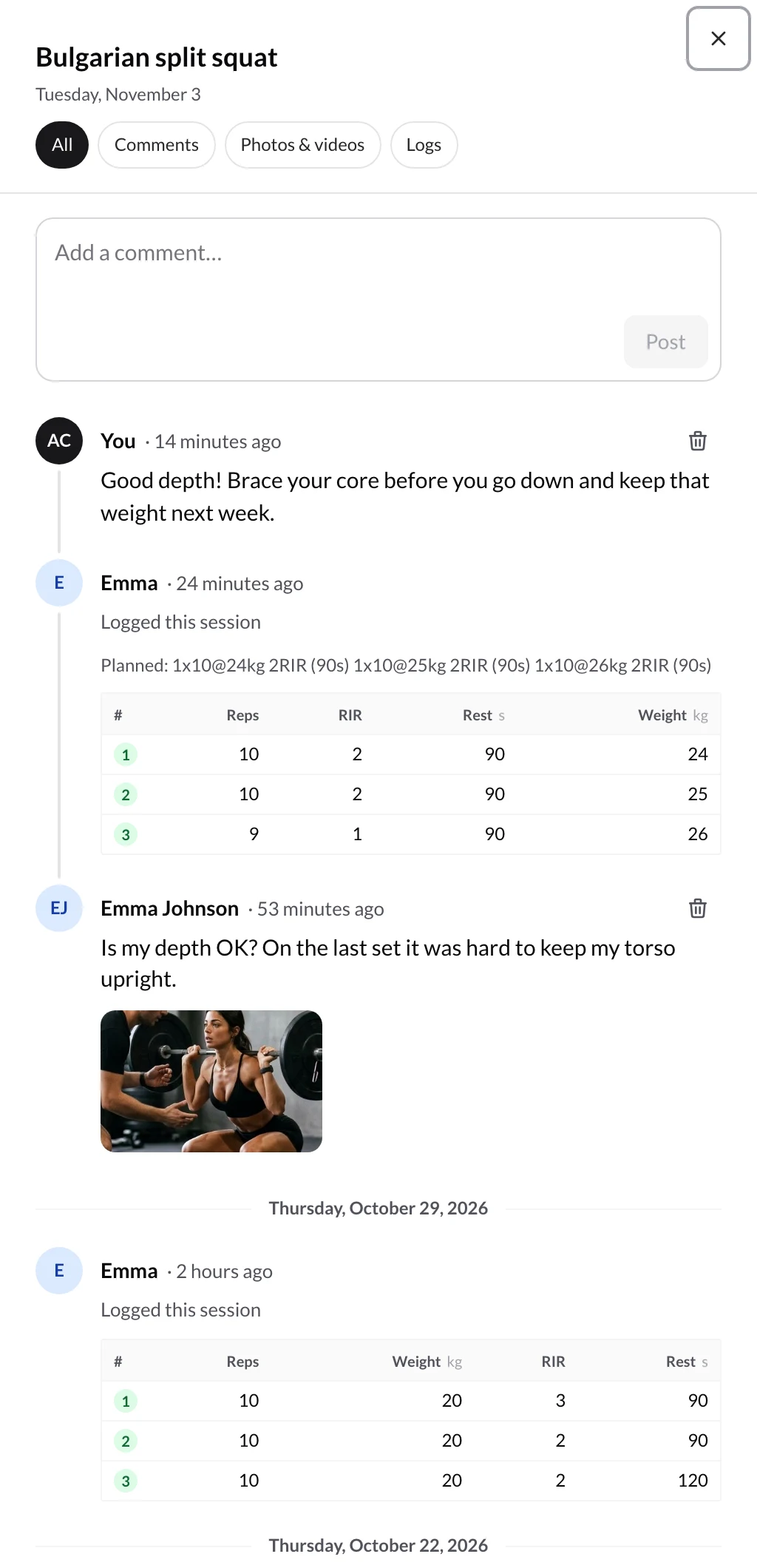
The activity is sorted newest first. At the top you have four filters:
- All: comments, photos, videos and logs together.
- Comments: only what you and your client have written.
- Photos & videos: only what your client has posted. Click a photo or video to see it larger.
- Logs: the sets they've logged on that exercise.
Logs: the exercise's progress
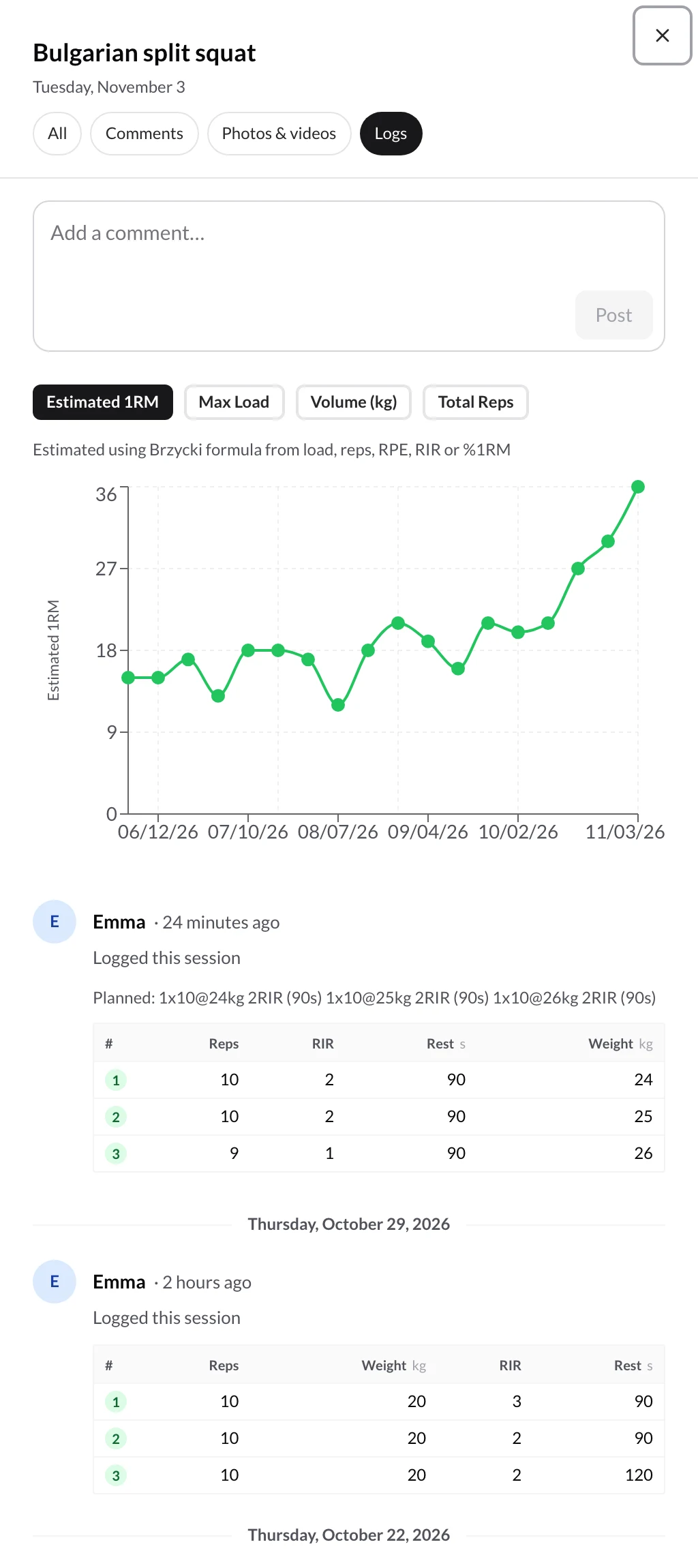
In Logs you see the exercise's progress chart and, below it, what they logged in This session and in Previous sessions. Each session comes with its Logged sets table showing what they did in every set, with what you had prescribed above it (Planned: …), so you can compare at a glance.
3. Reply to your client
Type in Add a comment… and click Post (or press Ctrl/⌘ + Enter). Replies are text only. Your client gets a push notification and sees your comment in the item's Comments tab.
What your client sees
In the app, each exercise has two tabs:
- Log: the sets table, where they enter what they do (it saves automatically) and mark each set by tapping its number.
- Comments: where they write to you and read your replies. If you have File uploads turned on in Your app → Customize App, they can also attach photos and videos; if you've asked them for a photo or video, they can always post it.
On items without a sets log, such as a task, they only see the comments.
Frequently asked questions
Where are the load and tonnage charts from the History tab?▼
What happens if I delete a comment?▼
Can I see the activity from a program or a template?▼
How do I know when my client has commented or posted something?▼
How do I go over a client's whole week?▼
Related guides
How to review a client's activity and notes?
Use the activity feed to see a client's workouts, metrics, photos and forms at a glance, and keep private notes that only you can see.
How to ask your clients for photos and videos?
Ask your client for a photo or video on any exercise, superset, circuit, task, form or measurement check-in. They can't complete it without posting it, and the card in the plan shows you when it has arrived.