Commenting on an exercise
Talk to your coach about each exercise in its comments
Every exercise, task or form in your workout has its own conversation with your coach: the Comments. Use them to tell your coach how it went, mention an ache or ask a technique question right where it belongs.
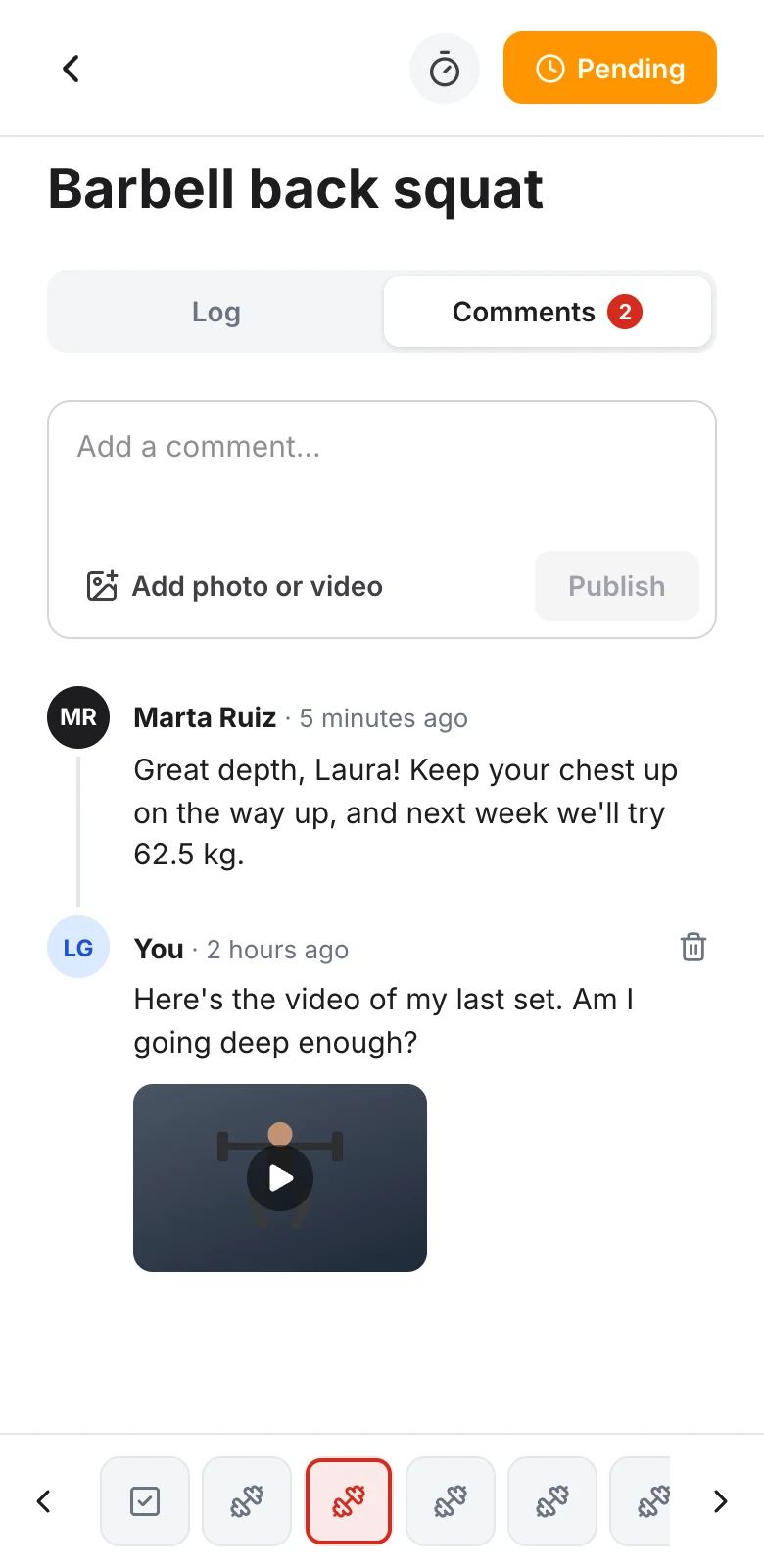
Writing a comment
- Open the exercise from today's workout and tap the Comments tab (if the exercise has no tabs, scroll down to the Comments section)
- Type in the Add a comment… field at the very top
- Tap Publish
Comments are sorted from newest to oldest, and the number on the tab tells you how many there are. Publishing a comment does not mark the exercise as completed: when you finish it, tap Pending to switch it to Completed.
Attaching photos or videos
If your coach allows it (or asks you for a photo or video), you will see Add photo or video next to the text field. Choose your files, wait for them to upload and tap Publish. You can attach up to 6 files per comment, 100 MB max each. If one fails to upload, tap Retry.
If the exercise requires a photo or video, Sending a required photo or video explains how to send it.