Nutrition
How to check your meal plan
Tap Nutrition in the bottom menu to see the meal plan your coach has prepared for you.
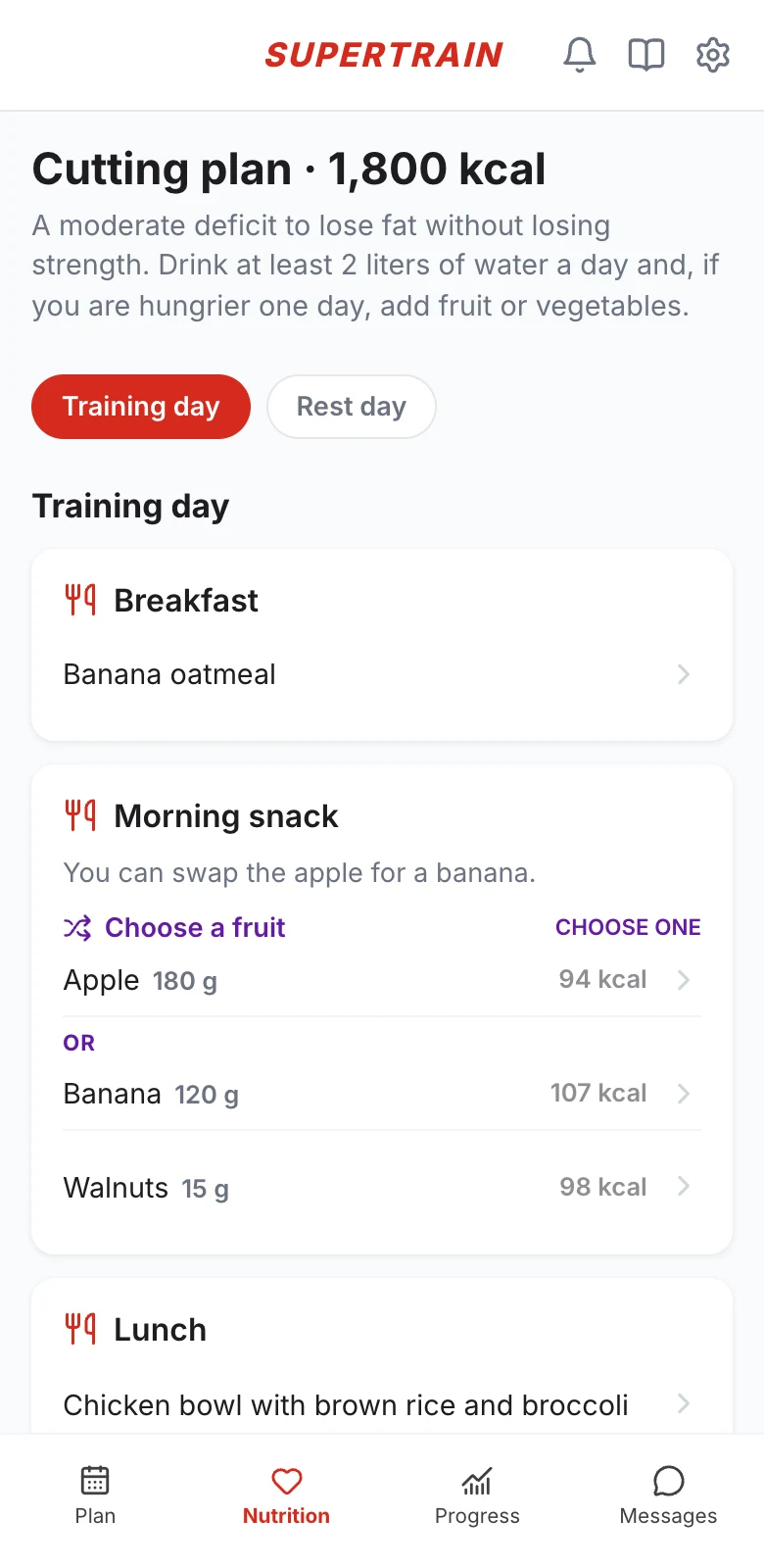
Your plan by meal
At the top you see the plan's name and your coach's general guidelines. If your plan has several types of day (for example, Training day and Rest day), choose today's with the buttons at the top.
For each day you will see your meals (breakfast, morning snack, lunch, afternoon snack and dinner) with their recipes and foods:
- When you see Choose one, you can pick any of the options offered (for example, apple or banana)
- Tap a recipe to see its calories and macronutrients (protein, carbs and fat), the ingredients with their amounts and the steps to prepare it
Other formats
Your coach can also give you the plan as text or as a PDF that you can read and download from this same screen. If they have not assigned you one yet, you will see the message "Your trainer has not yet set up your nutrition plan".
If you don't see Nutrition in the bottom menu, your coach has turned this section off or has not assigned you a plan yet.
Questions about a meal, or a food that does not agree with you? Message your coach from Messages.